How to Control Dell Monitor Brightness on Mac with Keyboard (2026 Guide)
Updated September 4, 2026 · 4 min read
If you recently connected a Dell UltraSharp (U2723QE, U3223QE, U2422H) or gaming monitor (Alienware, S2721DGF) to a Mac mini, MacBook Pro, or Mac Studio, you probably noticed a frustrating limitation:
Pressing the standard Apple brightness keys (F1 and F2) does nothing for third-party external monitors over HDMI or DisplayPort.
By default, macOS only sends hardware backlight commands to official Apple Studio Displays and Pro Display XDR. Reaching around the back of your Dell monitor to adjust fiddly physical joystick buttons every morning and night quickly becomes tedious.
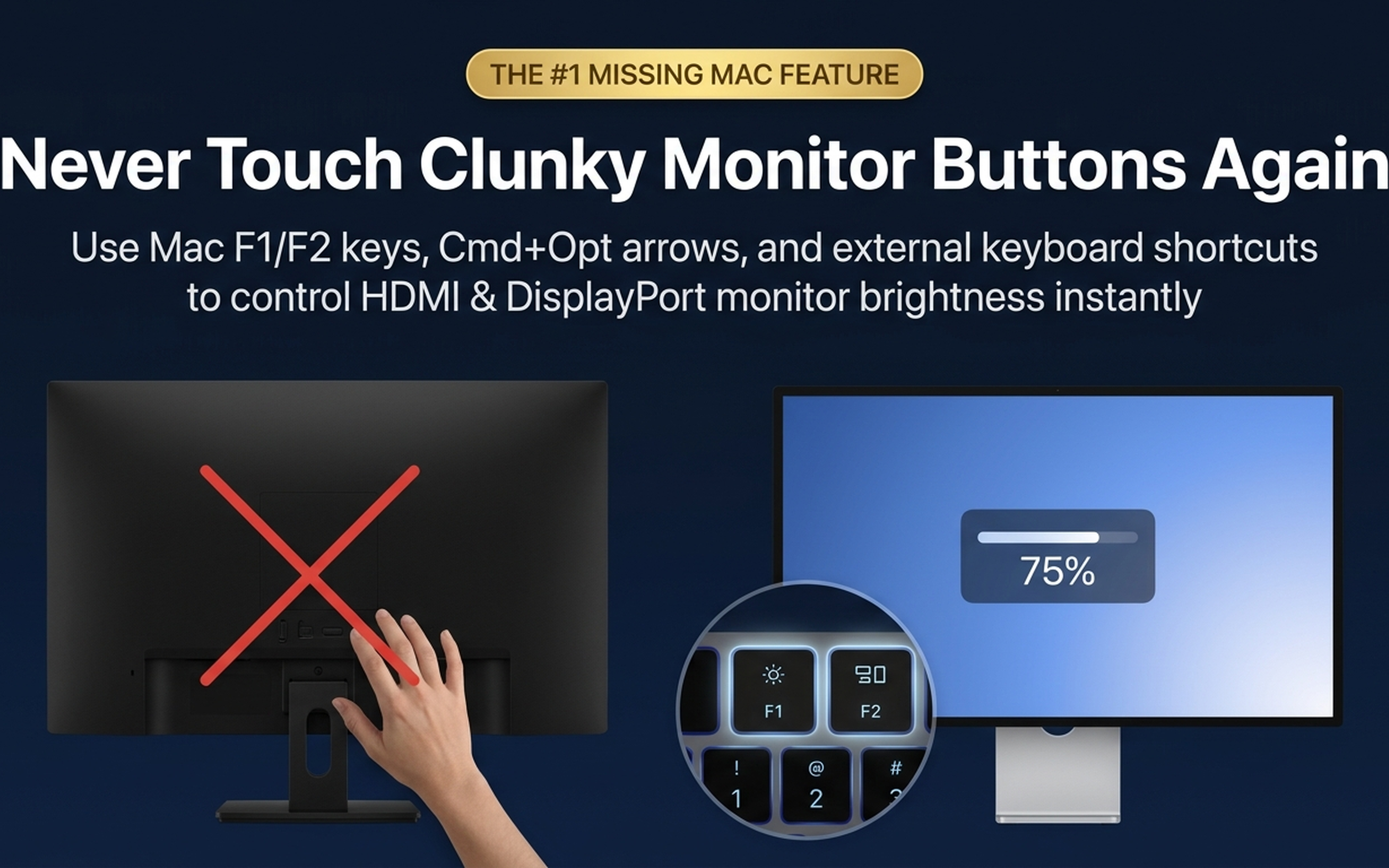
Why Don't Mac Brightness Keys Work with Dell Monitors?
Apple disables standard DDC/CI (Display Data Channel Command Interface) control over HDMI outputs on Apple Silicon Macs (M1, M2, M3, M4). Even over USB-C and Thunderbolt, macOS lacks native software volume and brightness hooks for non-Apple displays.
The Solution: MonitorGlow for macOS
MonitorGlow restores seamless, instant keyboard control for any Dell monitor plugged into your Mac using native macOS CoreGraphics gamma tables and click-through optical shading—bypassing finicky or unsupported hardware DDC protocols entirely.
1. Direct Keyboard Shortcuts
- ⌥ F1 / ⌥ F2: Adjust Dell screen brightness in precise increments.
- ⌘ ⌥ ↓ / ⌘ ⌥ ↑: Convenient arrow-key adjustments without touching function keys.
- Ctrl + F1 / F2: Ideal for non-Apple mechanical keyboards and Windows layouts.
2. Apple-Grade Floating OSD Bezel
When you adjust brightness, a native translucent Apple-style HUD bezel floats on your screen showing your exact Dell display model name and current brightness percentage.
Ready to Control Your Dell Monitor with Mac Keys?
Download Brightness - MonitorGlow on the Mac App Store. Includes a 3-day free trial and one-time Lifetime purchase.
Download on Mac App Store Step-by-Step Setup Guide
- Download and launch MonitorGlow: The app lives quietly in your menu bar and takes less than 18MB of RAM.
- Connect your Dell monitor: MonitorGlow instantly detects connected displays over HDMI, DisplayPort, or USB-C.
- Press ⌥ F1 / ⌥ F2 or ⌘ ⌥ ↑ / ↓: Your Dell monitor's brightness will smoothly dim or brighten without any lag.